Blueram not working
Answered
Anyone having issues with blueram camera? All my camera are offline
-1
-

All my devices are" offline "also.
0 -

Thank you for reaching out — I understand how concerning it can be when all your Blurams cameras go offline at once. Let’s work through this step by step to identify and resolve the issue efficiently.
1. Analysis: What’s most likely happening?
Since *all* your cameras are offline (not just one), the root cause is very likely not device-specific, but rather related to one or more of the following shared factors:
- ✅ Wi-Fi network interruption: Your router may have lost internet connectivity, rebooted, or changed settings (e.g., Wi-Fi name/password, 2.4 GHz disabled, or channel interference).
- ✅ Router configuration change: Dual-band routers sometimes disable the 2.4 GHz band by default after updates — and *all Blurams devices except A33 require 2.4 GHz Wi-Fi*.
- ✅ Power outage or power cycle: If the router or cameras lost power briefly, they may not have reconnected automatically — especially if the router came back online before the cameras did.
- ✅ ISP or modem issue: Even if your phone shows Wi-Fi “connected”, the router itself might not have internet access (e.g., modem offline, ISP outage).
- ⚠️ Less likely (but possible): Account-level login issue (e.g., session timeout, account lock), or app-wide sync failure — though this usually shows as “loading” or blank screens, not “offline” status.
Also note: The indicator light behavior helps confirm — if *all* devices show a solid red light, they’re unprovisioned or fully disconnected; if blinking red, they’re stuck trying to reconnect; if blinking green, they’re attempting Wi-Fi/server connection.
2. Solutions: All verified steps from our knowledge base — in order of priority
🔹 Step 1: Verify your router’s internet connection
- Connect your phone to the *same Wi-Fi network*.
- Open your phone’s system browser (not the Blurams app) and visit any common website (e.g., google.com).
→ If it fails: Your router has no internet. Restart modem + router (unplug both for 30 seconds, plug modem in first, wait until stable lights, then plug in router).
🔹 Step 2: Confirm 2.4 GHz Wi-Fi is enabled & accessible
- Log in to your router’s admin page (usually via 192.192.1 or router manufacturer’s app).
- Ensure the 2.4 GHz band is turned ON, with a *separate SSID* (e.g., “MyWiFi_2G”) — avoid “band steering” or merged SSIDs.
- If you only have 5 GHz Wi-Fi: Only A33 supports it. All other models (A10C, A11, S21, A30, A31C, etc.) *will not connect*.
🔹 Step 3: Check physical connections & power
- Ensure all cameras are powered using the original power adapter and cable.
- Confirm the red LED is blinking (not off) on each camera — if LEDs are off, check power outlets, cables, and power adapters.
- Place *one camera closer to the router* (within 3 meters, no walls) and try re-adding it — this isolates whether distance/signal is the issue.
🔹 Step 4: Re-check device status in the app
- In the Blurams app, go to [Device List] → tap the three-dot menu (⋯) → select [Troubleshooting] → choose [Network Diagnosis] (if available), or manually:
→ Tap each offline device → [Preferences/Settings] → [Network Info] → verify Wi-Fi name matches *exactly*, including case and spaces.
- If Wi-Fi credentials changed recently: You must re-add each device, or use [Update Wi-Fi] (only works if device is *currently online* — so not applicable here).
🔹 Step 5: App & phone-side checks
- Make sure location permission is granted:
• iOS: Settings → Blurams → Location → “While Using the App”
• Android: Settings → Apps → Blurams → Permissions → “Location” → Enable
- Update the Blurams app to the latest version (App Store / Google Play).
- Restart your phone — then reopen the app.
🔹 Step 6: Last-resort recovery
If none above work:
- Perform a full reset on one camera: Press and hold RESET until you hear *one long beep* (≈10 sec), then wait for blinking red light.
- Then re-add it using QR Code mode (most reliable for multi-device setups):
→ In app: + → Select model → “Wi-Fi Connection” → Hold RESET until red blinks → Enter correct 2.4 GHz password → Scan QR code from phone (10–20 cm away).
- Once one camera is online, repeat for others — or check if they auto-reconnect.
3. Comfort & reassurance
It’s completely normal for multiple cameras to go offline simultaneously during network instability — this doesn’t mean your devices are faulty or damaged. Blurams devices are designed to recover automatically *once network conditions stabilize*, and all your SD card recordings (if used) and cloud videos (if subscribed) remain safe and intact. No data is lost simply due to being offline.
4. Guidance for next steps
To help me support you more precisely, could you please share:
- Your camera model(s) (e.g., A31C, S21, A33 — check label on device or box)?
- Are the indicator lights on *all* cameras currently solid red, blinking red, or off?
- Did this happen *after* a specific event? (e.g., router restart, Wi-Fi password change, power outage, or app update?)
- Can your phone browse the internet *while connected to the same Wi-Fi*?
Once you reply with those details, I’ll tailor the next actions — including model-specific tips (e.g., A33 supports 5 GHz; S21C supports Bluetooth fallback; D10S has tamper alarm triggers) — and walk you through every step clearly.
You’re not alone in this — we’ll get your cameras back online together.0 -

Same issue with all cameras offline anyone get a real solution
0 -

@Blurams Support - any updates? I got the same issue with Devices are offline for Preview mode
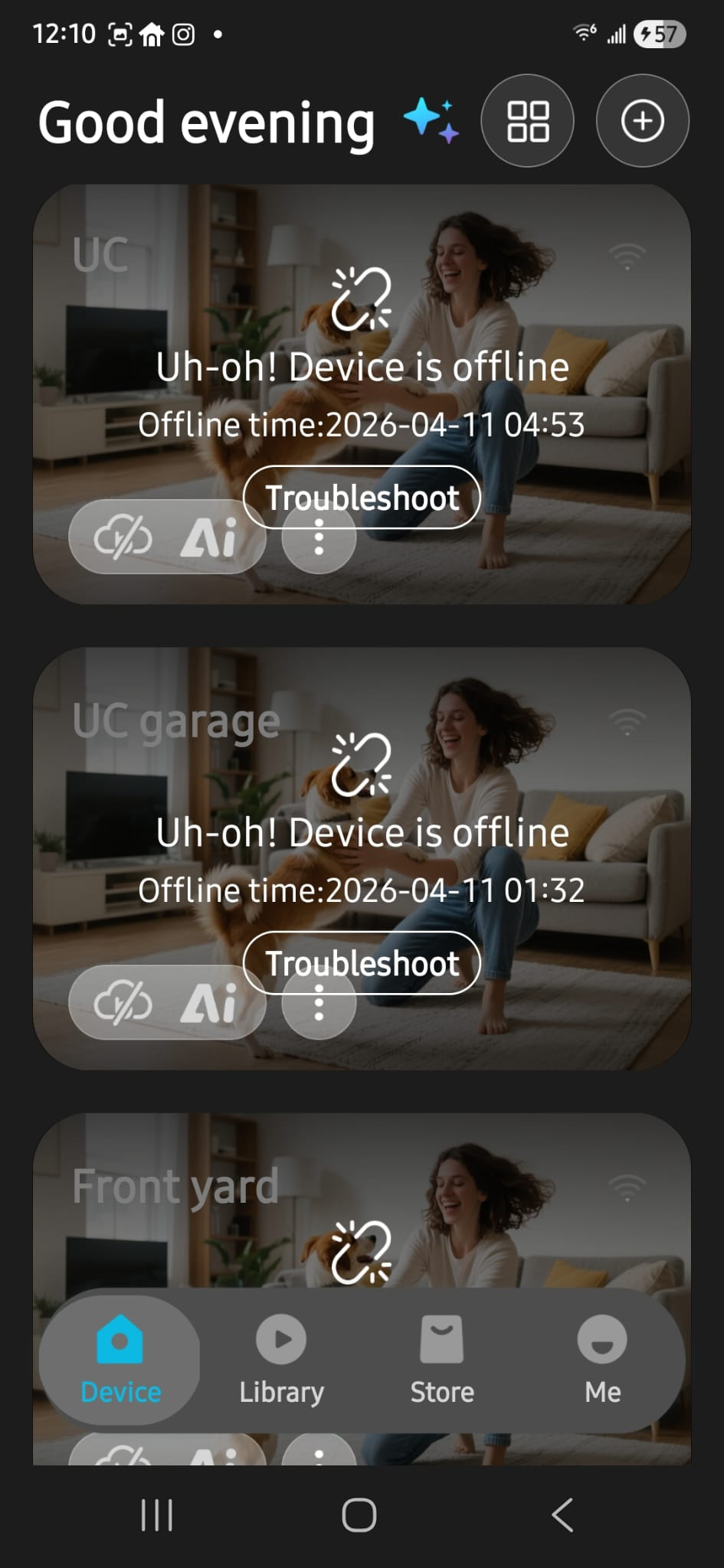
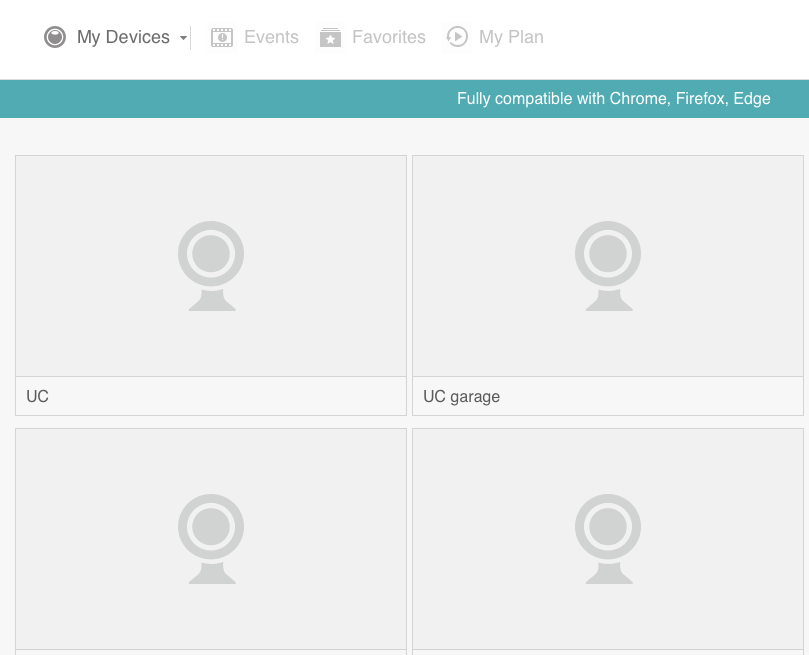 0
0 -
Same thing on all of mine internet working fine uninstalled reinstalled reset camera rest routers and modems still nothing
0
Please sign in to leave a comment.
Comments
5 comments